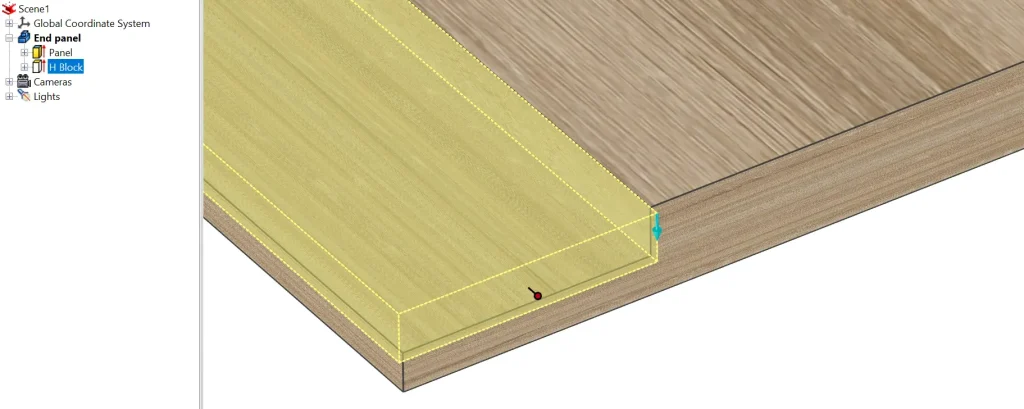
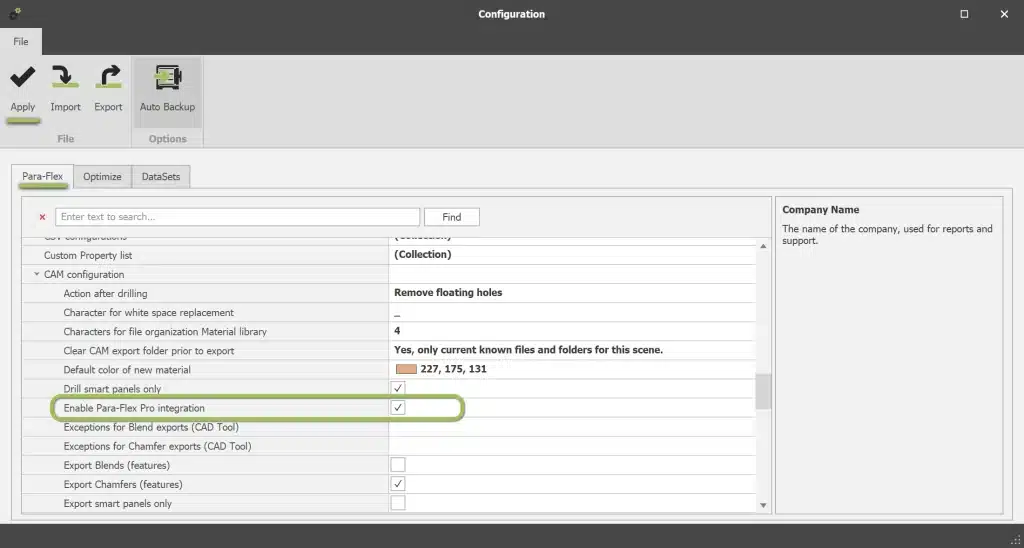
Para-Flex offers several ways to add overlength, depending on where and how the extra material is required. Overlength can be applied per edge, per material, as a default for all parts, or to individual selected parts.
The options below explain the different methods and when they can be used.
Add overlength per edge using edge banding
Use the edge banding functionality when overlength needs to be defined for specific edges of a part.
Further explanation to be added.
Set a fixed overlength for edge banding material
When calculating the required length of edge banding, Para-Flex can add a fixed amount of extra material. This helps ensure that the calculated edge band length includes sufficient material at both ends.
Go to Options > Settings > Optimize and find Edgeband Fixed Overlength.
Set a default overlength for parts
Para-Flex can automatically add a fixed overlength when calculating the cutting dimensions of parts.
This setting can also be applied conditionally based on the minimum length and width or the minimum surface area of a part.
Go to Options > Settings > Para-Flex and find Fixed overdimensions for parts (mm).
Add overlength to an individual part
Use the Property Grid when overlength needs to be adjusted for a specific selected part rather than applied as a general setting.
Further explanation to be added.
Set a default overlength for laminated parts
Para-Flex can also use a default overlength for parts that are processed with laminate.
Further explanation to be added.
Tip: Choose between Net and Gross dimensions
When exporting data or using Optimize, make sure you select the appropriate Net or Gross dimensions.
This determines whether the dimensions before or after applying overlength are used in the relevant output.
Further explanation to be added.
Tip: Using overlength with CAM Export
Overlength can also affect the dimensions used during the CAM export workflow.
Further explanation to be added.

 . The button for this will be visible on the Shop Floor toobar, and rotates the selected parts from back to front before generating the STEP files for the CNC process. Meaning that the top becomes the bottom and vice versa. By default, the top surface is determined by the part’s extrusion direction. More information about the top or bottom side of a panel, and how to recognize, can be found in the