Automatically create cutouts and holes
 Pro
Pro
How it works
Drill shapes for creating a cut out should be drawn as an IntelliShape within the Part it belongs to. For example, fixation holes of a door handle are drawn within the Part of the handle. These IntelliShapes can be suppressed so they won’t be visible in the model, but still do their job.
Based on these HWDrill geometry, the drill function creates the cut outs in all the Parts with which they come into contact.
Basic example
The following illustration (also seen in section Drill A) makes it easy to understand:
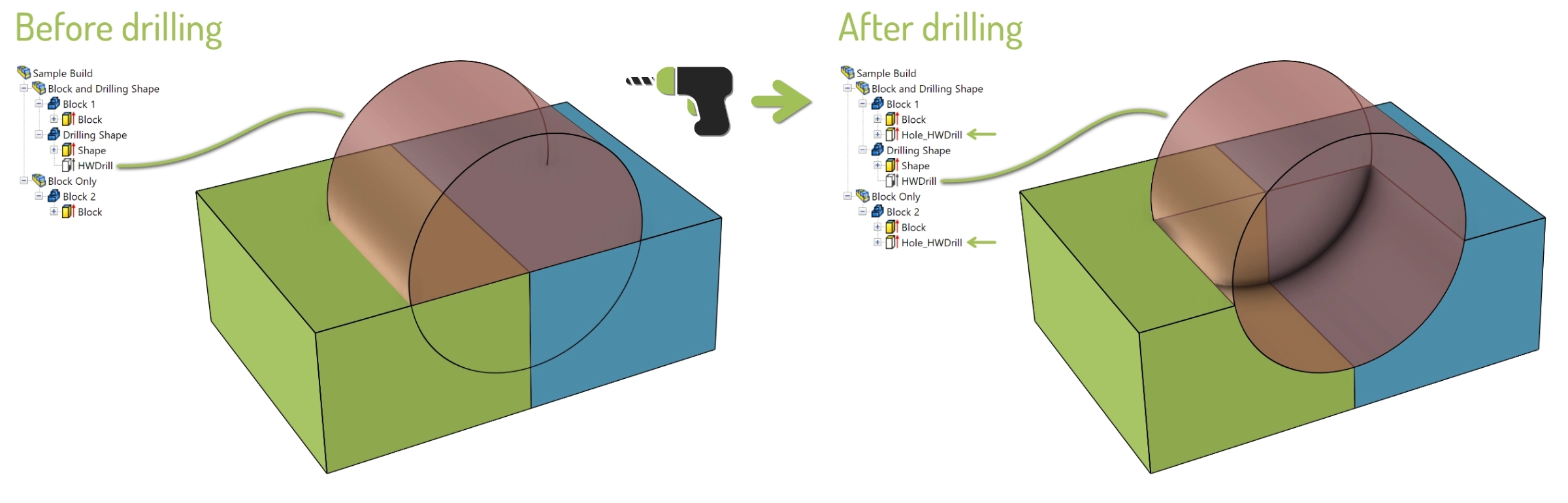
The red cylinder is de drilling shape, as that IntelliShape is named “HWDrill”. This cylinder collides with Block 1 and also Block 2. Hitting Drill in Para-Flex and pressing OK on the dialog window, creates a model as shown on the right.
Drill Shapes are positive geometry
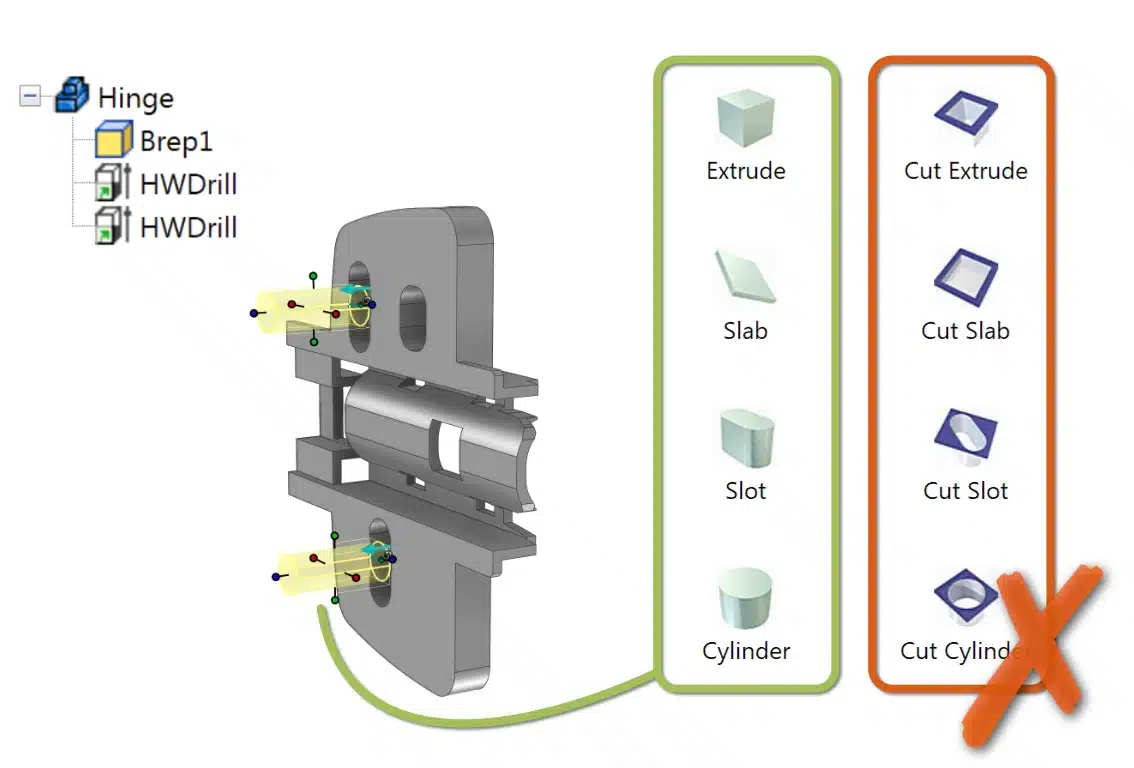
Use positive IntelliShapes to create drilling shapes, don’t use the Cut variants that remove material by themselves. In other words: use the shapes that ‘add material’ to the model, like shown in the image on the right.
Often the standard Shapes catalog is used to drag a shape on the relevant Part. This IntelliShape can be repositioned, resized and reshaped as desired.
Examples in Para-Flex catalog items
In the Para-Flex sample catalogs many parts contain drill shapes. They can be found when expanding a part (click on the plus sign in front of it). Look for a shape called HWDrill and if desired unsuppress it. The shapes can be edited like every other IntelliShape in IronCAD.
The Anchor of the drilling shape
Please pay attention to the Anchor point of the IntelliShape, for easy CNC automation in the future. The long axis of the anchor has to point in the direction the cutter head will come from when drilling in real live. For more information on this, see the toggle below (The result of the Anchor’s orientation).
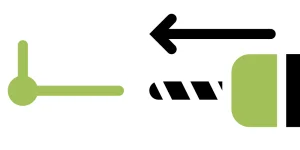
For non CAM users: When you don’t use the CAM capabilities of Para-Flex, it is still a good idea to keep the anchor’s direction in mind. This way, the models created are ready for future upgrades and can be outsourced to companies that do use Para-Flex CAM.
Step by step
In short, the process of creating drilling shapes works as follows:
- Drop a positive IntelliShape on the desired Part.
- Reshape and reposition this item as desired.
- Rename the IntelliShape to ‘HWDrill’.
- Make sure the anchor is pointing in the right direction (towards the cutter head).
- If needed, suppress the IntelliShape to keep your design clean.
Press the Drill button and confirm with OK as desired in the Drill dialog window.
Tips
- Recognition of the name/text ‘HWDrill’ by the drill tool isn’t case sensitive.
- The cutting shape should be an Intellishape that adds material (though it creates cut outs), so use the positive basic shapes, not the Cut variants.
- If it is desired to have the drilling shapes not visible, simply set the drill shape to Suppress.
Good to know
Recognizing holes
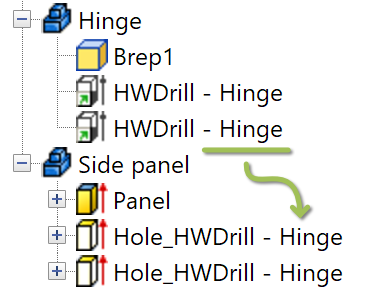
Although the name of a shape to be used for a drill operation has to contain ‘HWDrill’, every text can be added to the expression for easier identification of the result of this drill shape. For example a shape called ‘HWDrill – Hinge’ can be found as cut out shape in a side panel called ‘Hole_HWDrill – Hinge’. That makes it easier to recognize the origin of the cut outs.
Dividing the model into assemblies
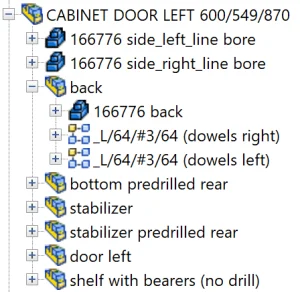
We advise to divide models into assemblies for a better overview and faster processing in IronCAD. E.g. when dowels need to be drilled into a panel, put the respective dowels and panel together into one assembly. An additional advantage of grouping them is that the dowels can easily be calculated according to a pattern that relies on the panel size.
The use of smart panels (For Pro/CAM users)
Although this is not necessary for the Drill function to work, we recommend users of Para-Flex Pro and higher to use so called ‘Smart Panels’ for board materials.
Parts based on Smart Panels behave like normal blocks in IronCAD, but are enhanced with additional intelligence. For example, the thickness and textures of Smart Panels can be controlled by Para-Flex, bottom and top sides are recognized, and sides for edge finishing are visually displayed in IronCAD. Compared to standard Parts/IntelliShapes, the Smart panels also offer capabilities for automatic CNC programming, such as CNC reference side and linking predefined milling tools.
Panels used in the catalogs provided by Dynfos are build up from smart panels.
More information for a good CAM workflow can be found here.
The result of the Anchor's orientation
As mentioned above, the direction of the Anchor Point of a HWDrill Shape is important to check (especially for CAM-users). Having mulitiple (blind) drills placed on the same side of a panel, the Anchor Points should point in the exact same direction. The long axis should point in the direction the cutter head comes from. For through holes, the influence of the anchor can often be corrected by the post processor, but when the anchor of a blind hole is pointing in the wrong direction, it depends on the settings in the post processor how this is handled.
Two examples of what can happen when different Anchor Point directions are combined on one side of a panel:
- The post processor could generate two programs, each for one side of the panel.
- The post processor could add a so called NC-Stop to give the ability to rotate the panel on the machine.
Warning! When the Anchor Point of a blind hole is pointing towards the wrong direction, it is possible the CNC machine cuts out the hole from the wrong side of the panel.
Tips
- After the Drill operation, the shapes are set back to their original suppress state.
- The drilling operation will be slower if there is a mix of ACIS and Parasolid parts in a scene.
- The Drill function can be applied after any model change, but first use Delete Drill if an existing drilling shape has been modified afterward.
Drilling selected items
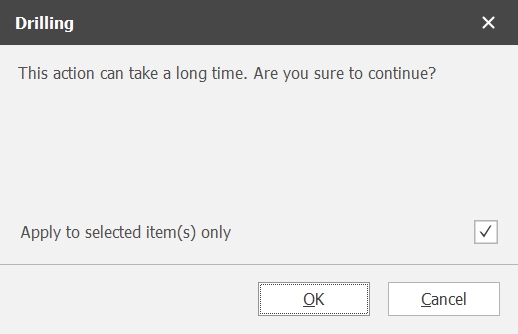
The window that pops up when clicking the Drill button shows the checkbox ‘Apply to selected item(s) only. Of course this checkbox can only be activated when a selection in IronCAD is active.
Applying the Drill operation to a selection of the model only is useful to speed up the drilling process. Of course, take into account that with the checkbox selected, only the selected items will recieve drills. Drill shapes and geometries that fall outside the selection range are simply ignored.